How to watch IPTV on Android TV: playlist, TV guide and catch-up
IPTV on Android TV works through a player app and an M3U playlist: the playlist lists channels and links to their streams, and the player shows them as a list by groups. The playlist comes from your internet provider or an IPTV service, the TV guide comes as a separate XMLTV file, and catch-up works if the provider supports it. SolaTV takes a playlist as a link or a file, updates the TV guide once a day and plays past programs from the archive, 7 days back by default. The app is free and sells no channels: TV comes from your provider.
What you need for IPTV on a TV
Watching TV channels on Android TV or Google TV takes four things; the fifth adds catch-up:
- An M3U playlist: a link like
https://…/playlist.m3u8or a file with the .m3u or .m3u8 extension. - An IPTV player app on the TV or the box, for example SolaTV.
- A stable internet connection: the provider usually states the speed needed for HD and 4K.
- A TV guide in XMLTV format. Without it channels play, but without program titles.
- Catch-up on the provider side. Without it only live TV is available.
The player itself contains no channels. The channel list, logos, groups and stream links come from the playlist, so the same playlist opens in most IPTV apps.
Where to get an M3U playlist
The playlist comes from whoever carries the channels. Some home internet providers give subscribers an M3U playlist: the link is in the account dashboard, on the website or comes from support. Large operators more often show channels only in their own app. Subscription IPTV services issue a link after payment, often with a personal token inside, so such a link should not be published.
Playlists from public lists on the internet often stop working within days and may infringe broadcasters’ rights. SolaTV does not offer such lists and contains no channel links.
How to add a playlist to SolaTV
The playlist is added in SolaTV settings in a minute, and a long link is easier to enter from a phone.
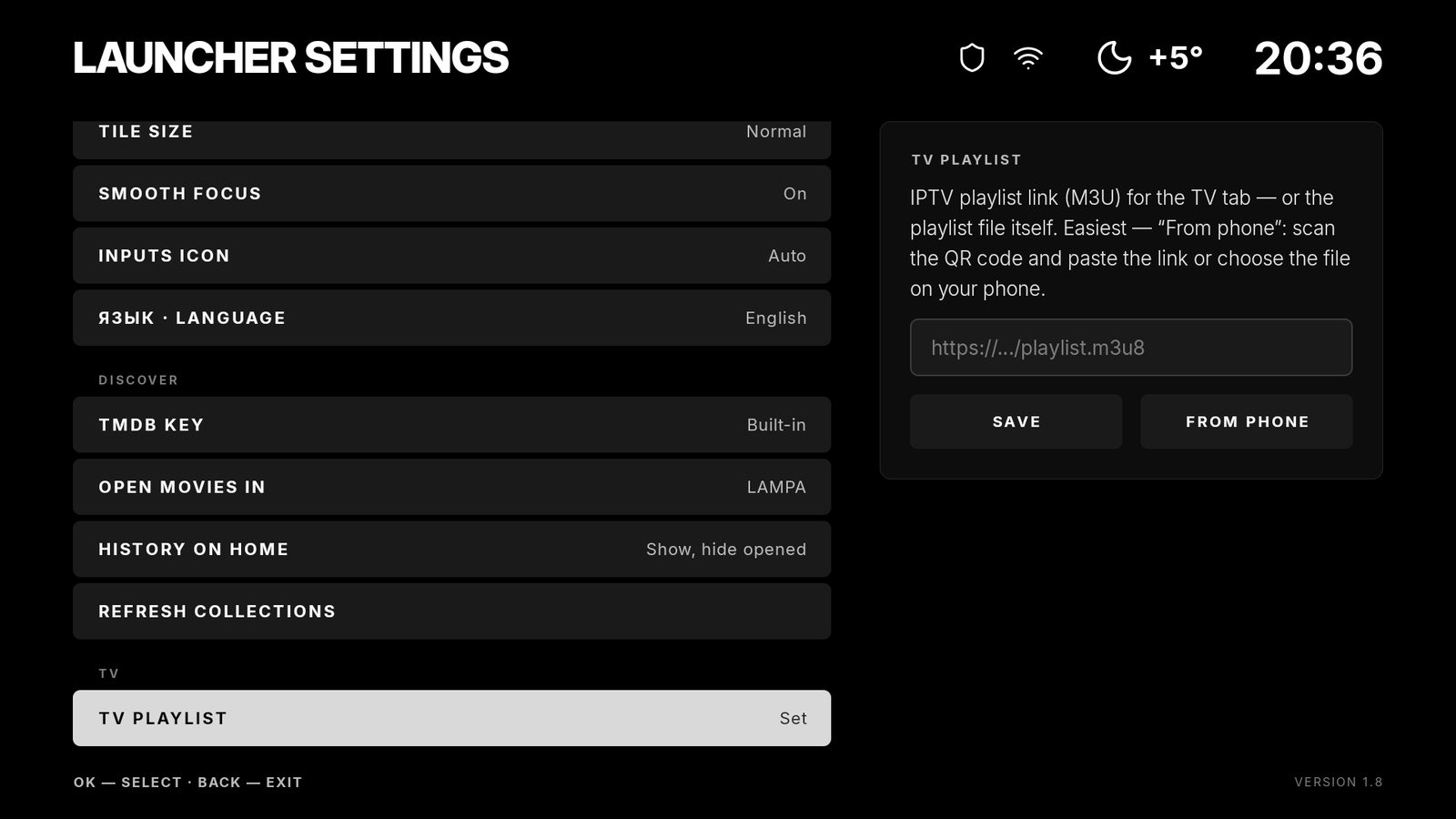
- Open SolaTV settings with the gear on the home screen and choose “TV playlist” in the “TV” section.
- Press “From phone” and point the phone camera at the QR code on the screen. The phone must be on the same Wi-Fi network.
- On the phone paste the playlist link or choose the playlist file and press “Send”.
- Open the “TV” tab on the home screen: channels appear by groups.
In the channel list the playlist groups with channel counts are on the left, and channels with the current program, time and a progress bar are on the right. OK plays a channel, the Right button opens the TV guide, a long press of OK adds the channel to favorites.

XMLTV TV guide
An IPTV TV guide is stored in an XMLTV file, plain or compressed .gz. By default SolaTV uses the rus.epg.team guide; your own address goes into the “TV guide” item in settings. The file downloads once a day, and only your playlist channels and programs for the past and next day are kept: a few megabytes instead of a hundred.
Programs are tied to a channel by the tvg-id attribute in the playlist: it must match the channel identifier in the XMLTV file, the id attribute of channel and channel of programme. If a channel has no tvg-id, SolaTV matches the guide by the channel name.
| M3U attribute | What it sets | Example |
|---|---|---|
tvg-id | The channel in the TV guide | tvg-id="1tv" |
tvg-logo | Channel logo | tvg-logo="https://…/1tv.png" |
group-title | Group in the channel list | group-title="Movies" |
catchup | Catch-up type | catchup="shift" |
catchup-days | Catch-up depth in days | catchup-days="7" |
An empty guide for some channels almost always means their tvg-id does not match the XMLTV file. The provider that issued the playlist usually has its own guide link too, and it gives more matches.

Catch-up and rewind
Catch-up lets you play a program that has already aired from its very beginning. In the SolaTV TV guide past programs are marked “Archive” with their duration, the current one is marked “On air now”, and future ones are grey and do not play.

The provider stores the archive, and the player only builds a link to the right moment. The playlist tells how to build it with the catchup, catchup-source and catchup-days attributes on the channel or shared in the #EXTM3U line. SolaTV understands the default, append, shift, flussonic and xc types, like Kodi (PVR IPTV Simple) and other popular IPTV players, and template tags such as {utc}, {duration}, {Y}-{m}-{d}. Without the attributes SolaTV appends ?utc= with the program start time to the link: that is how many providers set up catch-up.
catchup-days sets the archive depth; without it SolaTV shows 7 days. Pause and rewind on live TV also work through the archive: after a pause the program continues from the same point. A channel without an archive offers only live TV.
If channels do not show or the guide is empty
| What happens | Likely cause | What to do |
|---|---|---|
| The playlist does not load | The link has expired or is tied to another device | Open the link in a phone browser; ask the provider for a new one |
| A channel does not play | The stream is down or works only inside the provider’s network | Try another channel; ask the provider whether IPTV works outside its network |
| No program titles | tvg-id does not match the XMLTV file | Set the provider’s guide in the “TV guide” item |
| Catch-up does not open | The provider keeps no archive for this channel or another type is set | Check the catchup attributes in the playlist |
The TV guide updates once a day, so a new XMLTV address starts working after the next file download. The playlist is re-read right after the link is saved.
Frequently asked questions
Can I watch TV channels on Android TV for free?
The SolaTV app is free, and access to channels depends on the provider. With some home internet providers IPTV is included in the plan, and then the playlist costs nothing on top of the subscription.
How do I set up IPTV on a Xiaomi TV?
On Xiaomi TVs and boxes with Android TV and Google TV, IPTV is set up the same way: install SolaTV from the APK and add the playlist in the “TV playlist” item. The screenshots in this guide were taken on a Xiaomi TV Stick 4K with Google TV 14.
What is tvg-id in a playlist?
The tvg-id attribute links a playlist channel to its programs in the XMLTV file. If tvg-id matches, the channel shows the current program and the day’s schedule; if not, the channel plays without a guide.
Does SolaTV support Xtream Codes playlists?
Yes, through an M3U link like http://server:port/get.php?username=…&password=…&type=m3u_plus&output=ts. SolaTV opens catch-up for such channels with the xc type if the playlist sets catchup="xc" for the channel; the standard get.php link usually lacks this attribute.
Can the TV turn on straight to a channel?
Yes. In SolaTV settings, item “When the TV turns on”, choose the home screen, the channel list or the last channel.